 WaveSmith
Home / Guides / How to convert a video file to MP3 (listening copy)
How to convert a video file to MP3 (listening copy)

This page is the listening copy: an MP3 you can put on a phone or send to a transcriber. The NLE soundtrack — 48 kHz WAV — lives on How to extract a WAV soundtrack from MP4. Same Open dialog, different export row, different URL on purpose.
Trim slates and coughs on the wave before you export. The NLE may still want a 48 kHz WAV — use the Video WAV preset. The host wants MP3 — pick Lossy → MP3 in the same dialog.
A listening copy, not a timeline file
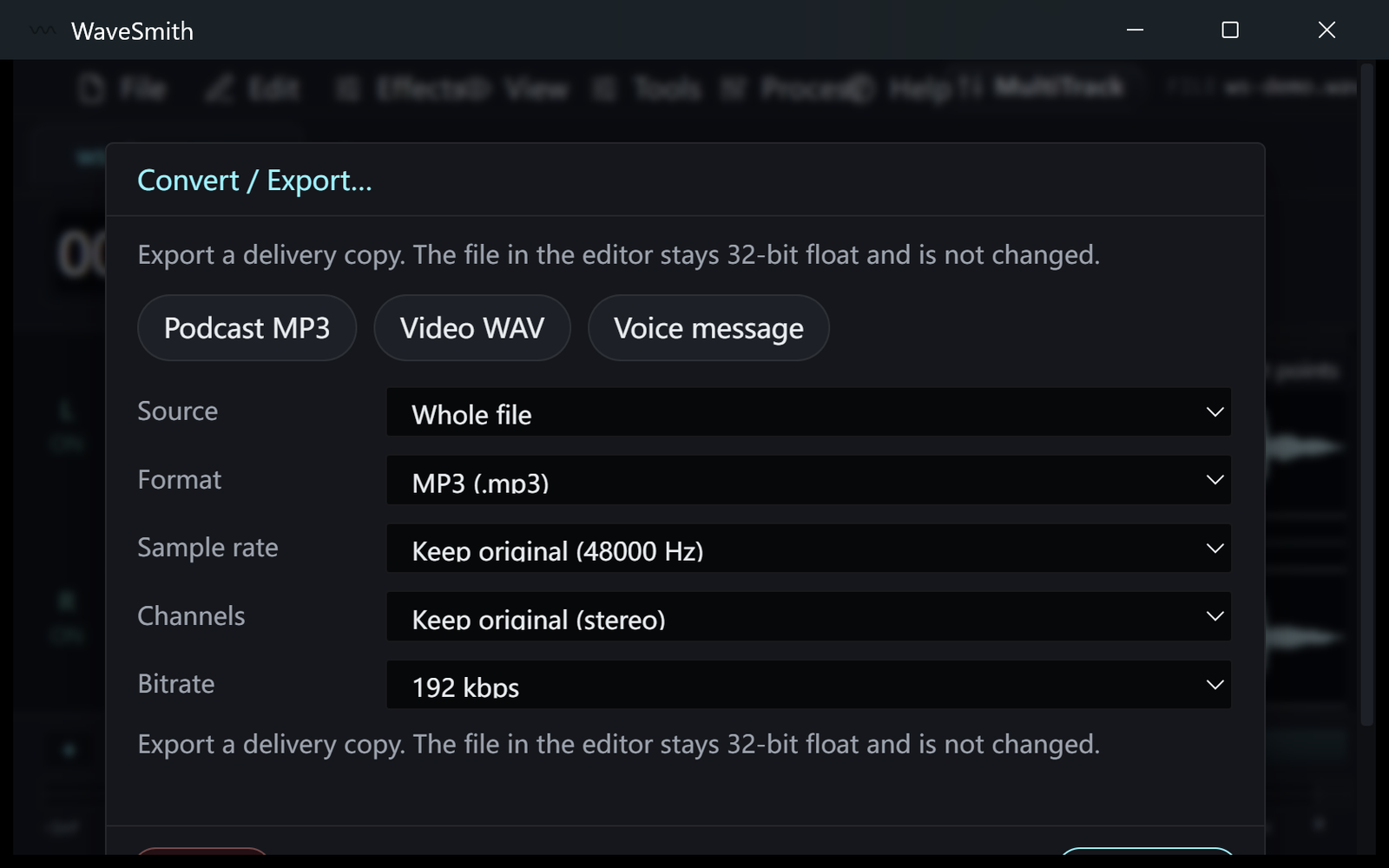
Open the MP4 (or MKV / MOV / WEBM) like a WAV. Trim what you do not need. Ctrl+Shift+X → Lossy → MP3. 192 kbps for speech; 320 if the host allows the size. Keep the video file; this write is a new MP3 beside it. If the next stop is an NLE, use How to extract a WAV soundtrack from MP4 instead.
Rights still apply: only convert a camera file or a download you are allowed to keep. A random webpage that promises “video to MP3” in three radios will also ask you to upload the picture. WaveSmith demuxes locally. That is the product difference, not a slogan.
If the MP3 sounds thin
You may have exported a low bitrate or downsampled a 48 kHz master. Undo is the wrong tool after a closed dialog — convert again from the original video at 192 or 320. Do not stack MP3 on MP3. If you only needed words for a transcript, 96–128 kbps can be enough; say so on purpose, not by accident.
Listening copies are for commutes and transcripts, not for picture lock. If the producer later asks for WAV at 48 kHz, go back to the video or to How to extract a WAV soundtrack from MP4. Do not upsample the MP3 and hope. That is the whole reason these two guides are not one URL.
A phone copy is allowed to be small
Listening copies are for commutes and transcripts, not picture lock. Open the MP4, wait, trim slates if you want a shorter listen, Convert/Export Lossy → MP3. 192 kbps is enough for speech on a phone. Keep the video. If the producer later asks for WAV at 48 kHz, go to How to extract a WAV soundtrack from MP4. Do not upsample the MP3 and hope. That is the whole reason these two guides are not one URL.
MKV, MOV, and WEBM open the same way. If the waveform is silent, the file may have an unusual codec — Convert can still pull audio on first run after FFmpeg lands. Rights still apply: a downloaded movie is not yours to strip. This product will not lecture you in a dialog; the law still will.
Name the MP3 after the video plus `_listen`. Keep them in one folder so you can find both. Do not delete the video because the MP3 “is smaller.” Next week someone will ask for a WAV.
Transcripts and commutes are allowed to be lossy
A transcriber does not need 48 kHz WAV. A phone does not need FLAC. MP3 at 192 kbps is the listening copy this URL is for. Keep the video until nobody will ask for picture or a WAV. If they ask, do not upsample the MP3 — return to extract-audio-from-mp4 or to File → Open the video again. Rights still apply to movies you downloaded. WaveSmith will not pop a lecture; the law still will.
How to do it in WaveSmith
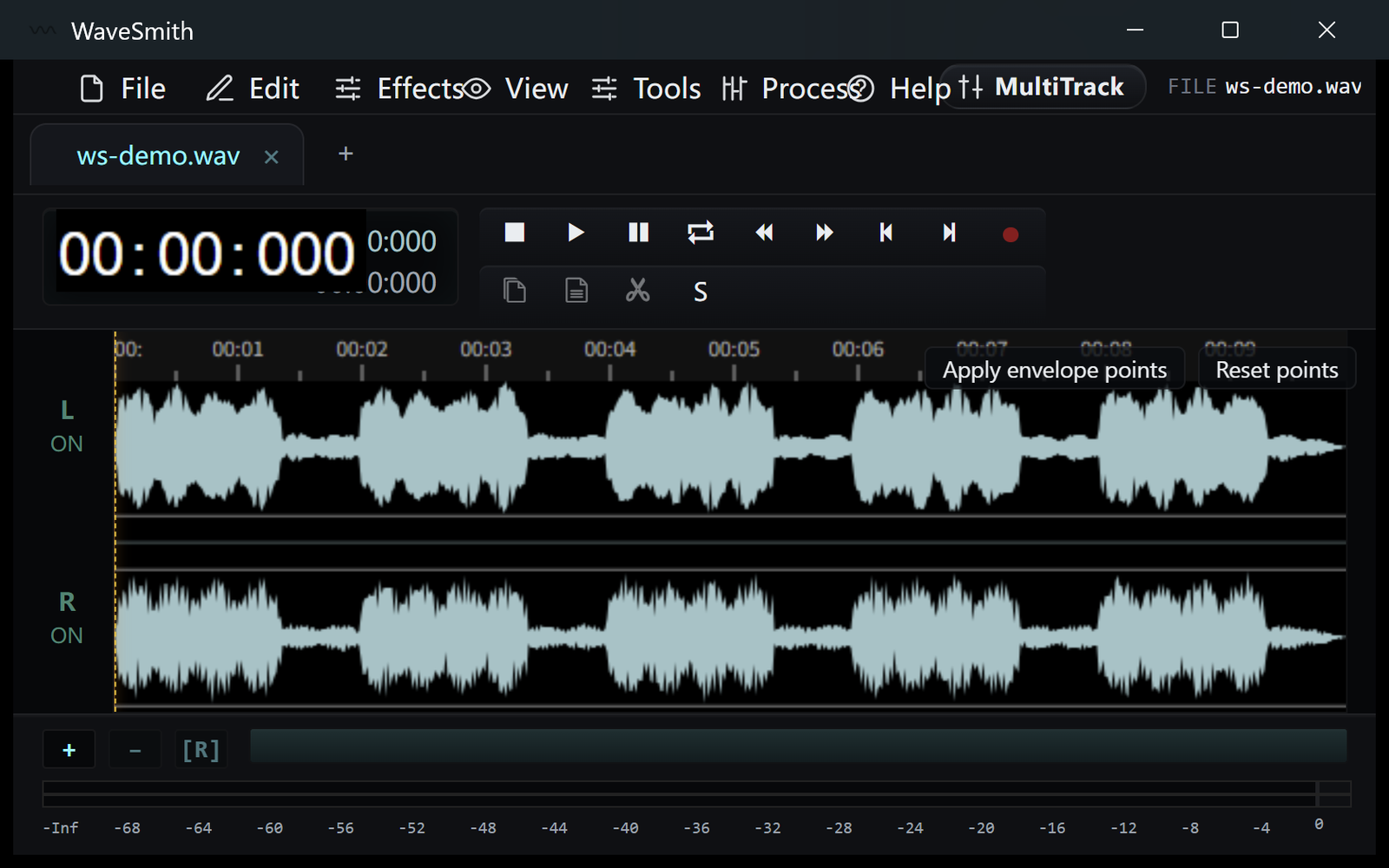
File → Open the .mp4 (or .mkv / .mov / .webm).
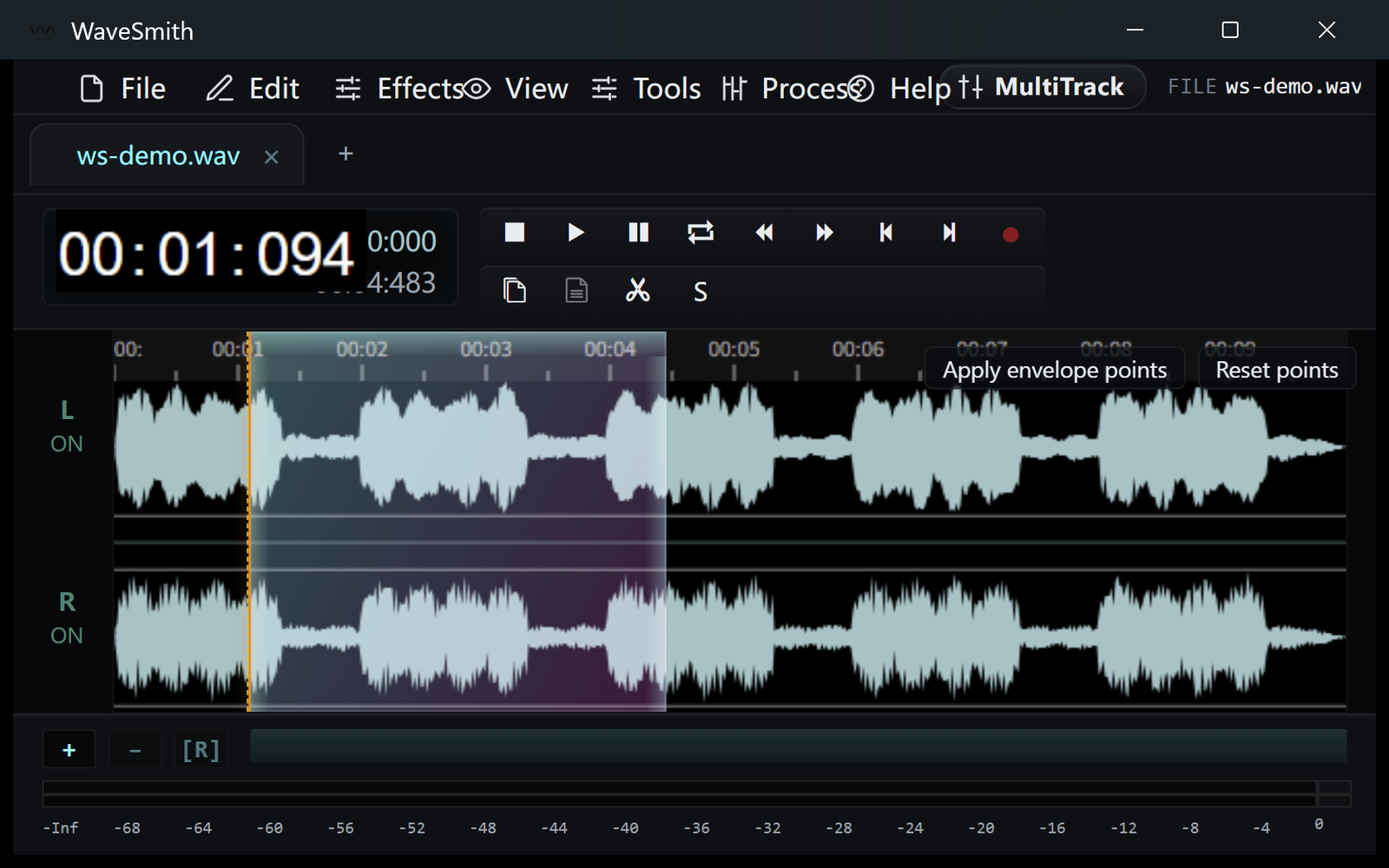
Step 1 Wait for the waveform. Trim the parts you do not need.
Step 2 Ctrl+Shift+X → Lossy → MP3 (or Video WAV if picture still needs the file).
Step 3


Ready? Download the Windows installer.
Related
Install it. Open a file. Feel the difference.
Free Windows 64-bit installer. WaveSmith 1.1.0. Your audio does not go to our servers — we do not have a place to put it.
Download WaveSmith free