 WaveSmith
Home / Guides / How to add audio effects
How to add audio effects

WaveSmith did not hide the Effect menu to look simple. Simple is File, Tools, and Process sitting next to Effect — not deleting the compressor.
Use Effect for EQ, compressor, fade, pitch, delay, reverb. Use Process for noise reduction, LUFS, gate, and the podcast chain. Undo if the pass was proud; History names the step.
Shape a healthy take on the Effect menu
Select a region or leave none for the whole file. Effects holds EQ, compressor, fade, pitch, delay, and reverb. Process holds noise reduction and LUFS. That split is on purpose: repair is not “enhance,” and a compressor is not a de-clicker. A/B the pass. Undo if it was proud. History (Ctrl+Shift+H) names the step.
This tutorial is the how-to for EQ and dynamics. The feature page Audio effects: EQ, compressor, fade, pitch is the menu inventory. How to remove background noise is Process — a fridge hum is not a compressor job.
Export a copy so the float master stays clean
Envelope handles on the selection give clip-gain without a modal. Pitch and speed still exist for the joke take and the too-slow lecture. Normalize and limiter still exist for days LUFS is more than you need. Then Convert/Export. Do not Save-as-MP3 over the only healthy take.
A useful EQ starting point for voice is a high-pass around 80–100 Hz if the mic is woofy, a little cut where the room rings, a little presence if the words hide. Then stop. A compressor with a slow-ish attack keeps consonants; a fast attack on a whole podcast will eat them. Fade the edges of a clip you inserted. Pitch is for the joke take. If the problem is a fridge, leave this page.
EQ, compressor, fade, pitch — then stop
A useful voice starting point: high-pass around 80–100 Hz if the mic is woofy, a little cut where the room rings, a little presence if the words hide. Then stop. A compressor with a slow-ish attack keeps consonants; a fast attack on a whole podcast eats them. Fade the edges of a clip you inserted. Pitch is for the joke take, not for “making it radio.” Delay and reverb are seasoning. If the problem is a fridge, leave this page.
Select a region or none for the whole file. A/B the pass. Undo if it was proud. History names the step. Effects is not Process: noise reduction and LUFS live next door. Mixing those jobs on one page is how people search for “audio effects,” land on a de-noiser, and bounce. This tutorial stays on EQ and dynamics. The feature page is the menu inventory.
Export only after you like the A/B. A proud compressor baked into an MP3 is expensive to undo. Save the float first. Then Convert/Export a copy with a suffix like `_eq`. Tomorrow you will thank boring filenames.
A/B is cheaper than four stacked fixes
Apply EQ, listen, undo if proud. Apply compressor, listen, undo if it ate consonants. Fade edges of a pasted clip. Pitch only the joke. Do not run delay and reverb on a dry voice because a video tutorial did. Export a `_eq` copy from the float Save. If the floor is still a fridge, you are on the wrong page — Process is How to remove background noise. If the host wants a number, How to normalize audio loudness is next, not another EQ band.
How to do it in WaveSmith
Select the region, or leave none for the whole file.
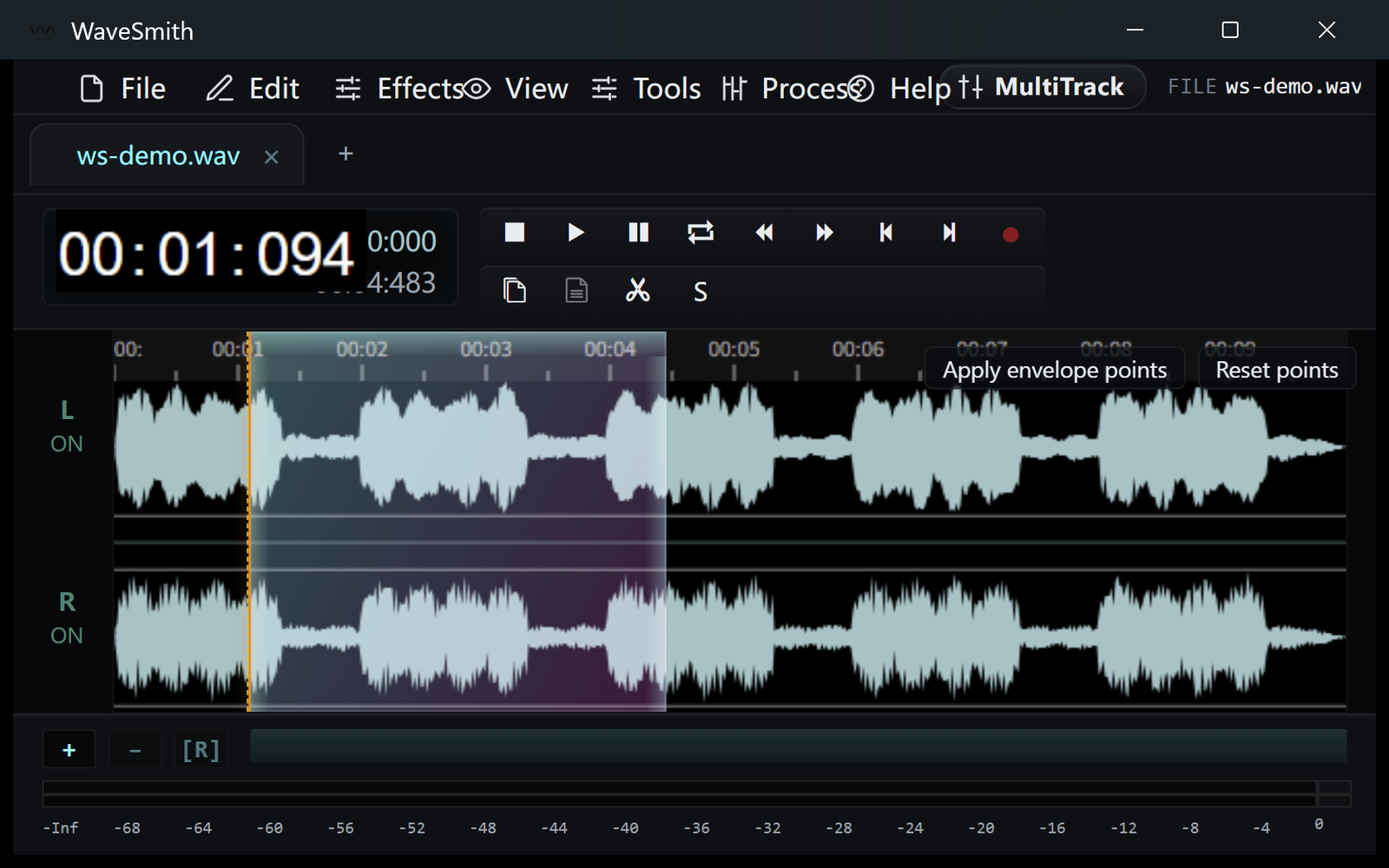
Step 1 Effects → EQ, compressor, fade, or pitch. Process → repair or LUFS.
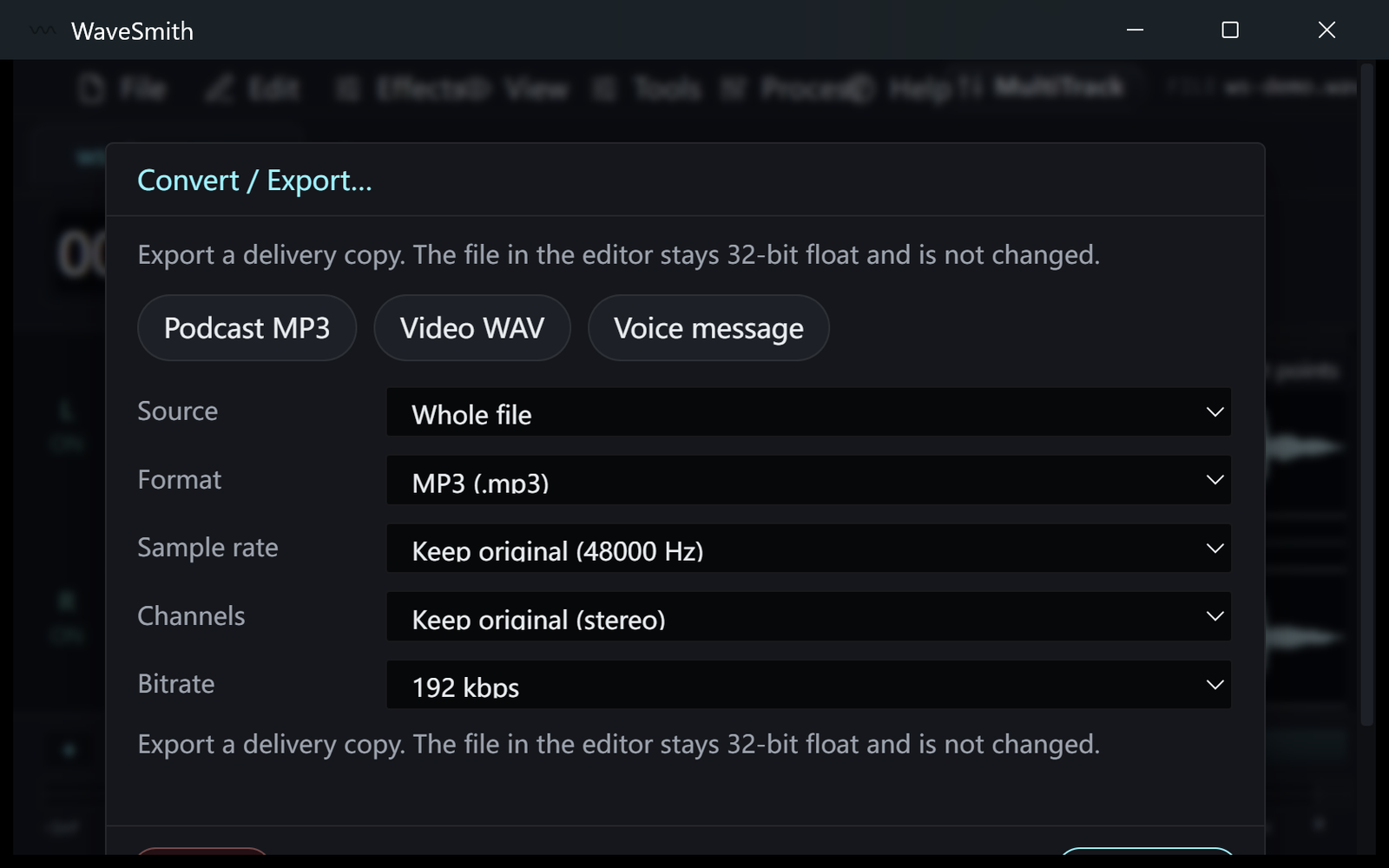
Step 2 Listen, undo if needed, then Convert/Export a copy so the float master stays clean.
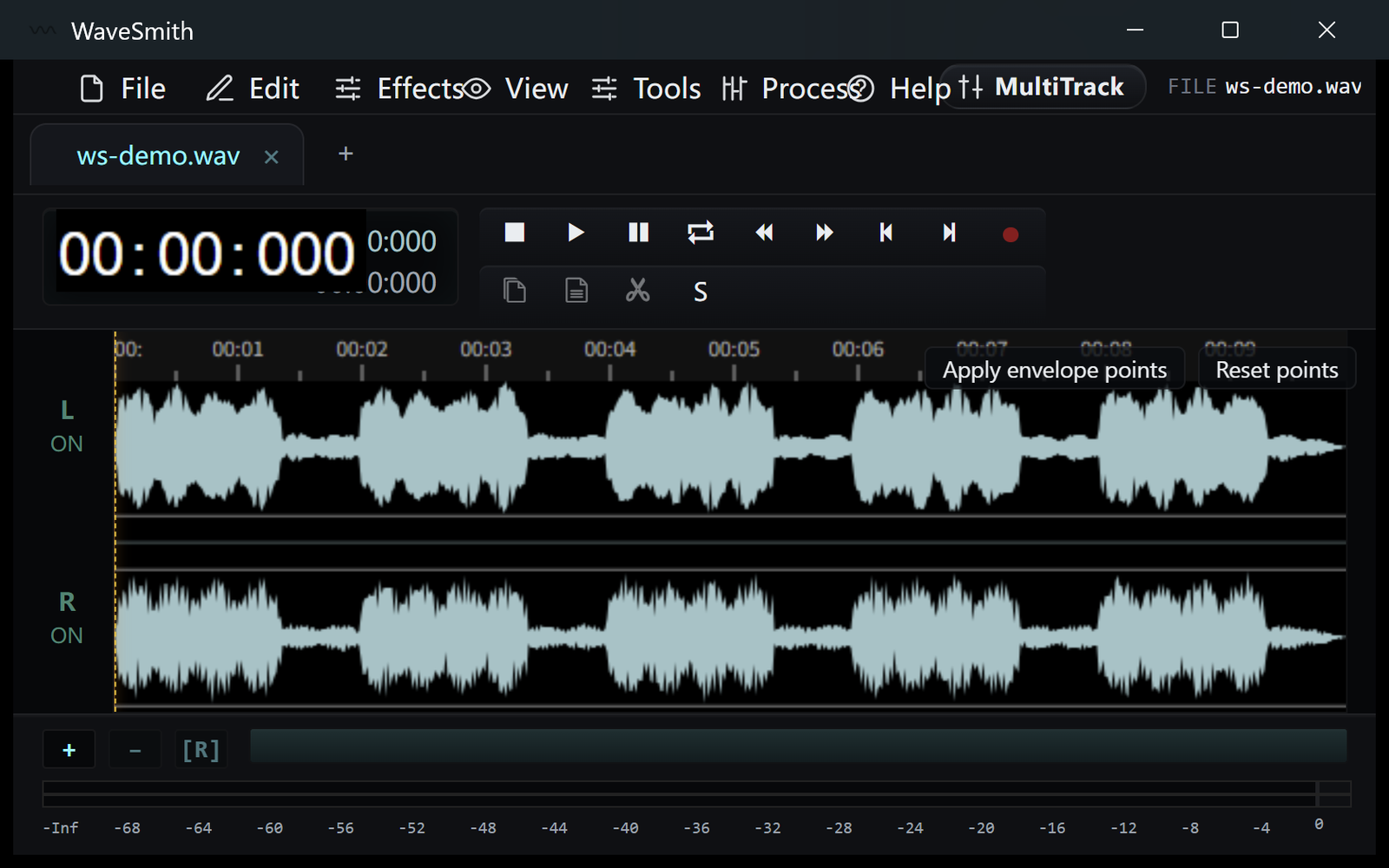
Step 3


Ready? Download the Windows installer.
Related
Install it. Open a file. Feel the difference.
Free Windows 64-bit installer. WaveSmith 1.1.0. Your audio does not go to our servers — we do not have a place to put it.
Download WaveSmith free