 WaveSmith
Home / Guides / How to remove background noise
How to remove background noise

“Enhance” buttons invent water. Named passes tell you what changed. Start with the stain you can point at.
Name the stain before you touch a slider
Hiss, hum, click, and a 15 kHz beep are different jobs. Process holds named repair: de-click, de-hum, de-clip, gate, DC remove, then a repair-studio pass. The spectrogram box is for a tone you can draw around. An Enhance button invents water. If the voice got thinner, undo and use a lighter pass — A/B exists so you can hear the lie.
How to add audio effects is EQ, compressor, fade, and pitch on the Effect menu. This page is Process repair. Mixing those intents is how sites cannibalize themselves. Use effects when the take is healthy and needs a shape; use this guide when the take is embarrassing.
Gate after repair, not instead of it
If the room is only a little live, a gentle gate after de-hum is enough. If a phone beep is a stain on the picture, draw the spectrogram box. Export a copy; do not overwrite the embarrassing original until you have listened once on headphones.
A fridge hum is a line in the spectrogram. A computer fan is broadband hiss. A chair click is a spike. Run one named pass, listen, then decide. Stacking four repairs because the first one “almost” worked is how voice turns to cardboard. If you need EQ after the floor is quiet, that is How to add audio effects — a different page on purpose.
Name the stain, run one pass, stop
A fridge is a line in the spectrogram. A fan is broadband hiss. A chair is a spike. Run the named Process pass that matches, listen, then decide. Stacking four repairs because the first one “almost” worked is how voice turns to cardboard. If you need EQ after the floor is quiet, that is How to add audio effects. If you need LUFS, that is How to normalize audio loudness. This URL is the stain.
Work on a float Save, not on the only MP3. A noise pass is hard to undo once you have exported a lossy copy. A/B against the original take. If the voice lost air, undo and try a milder setting or a shorter region. The spectrogram is there so you can point; do not skip it because a website sold you an Enhance button.
Clicks and beeps are not hiss. A de-clicker on broadband noise smears speech. Hum is not a compressor. Read the Process names. The feature page Noise reduction & repair lists them. This how-to is one stain, one pass, headphones.
The spectrogram is a pointer, not decoration
Draw a box on the stain if the tool offers a selection. Run one named pass. A/B against the dry take on headphones. If the voice lost air, undo. A second pass on a smaller region is fair; a fourth pass on the whole file is how cardboard happens. Clicks are not hiss. Hum is not a compressor. Save float first so you can walk back. Then export. The feature page lists the Process names; this how-to is one stain.
How to do it in WaveSmith
Listen once and name the problem: hiss, hum, click, or beep.
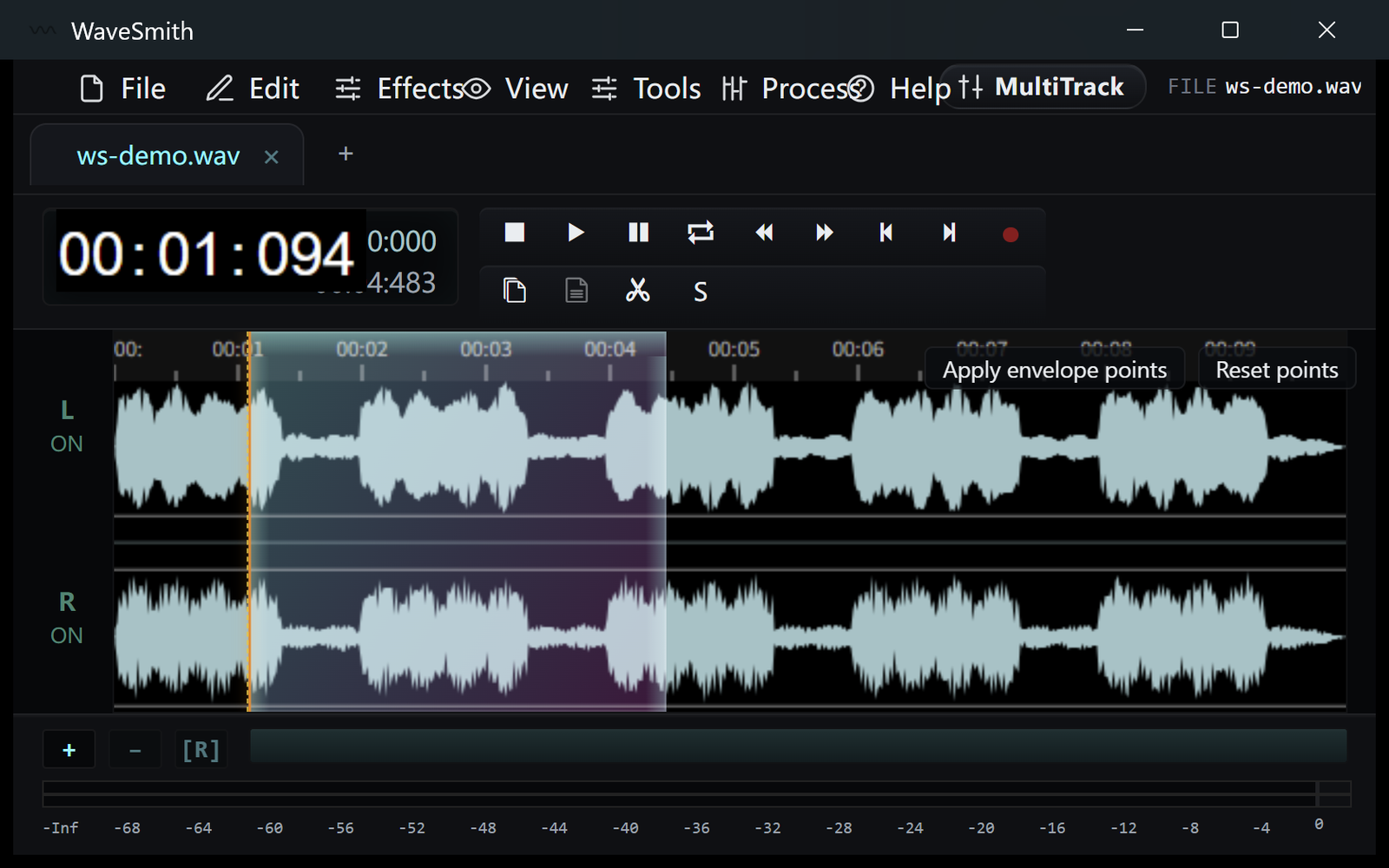
Step 1 Process → the matching repair or gate. Spectrogram box for a tone.
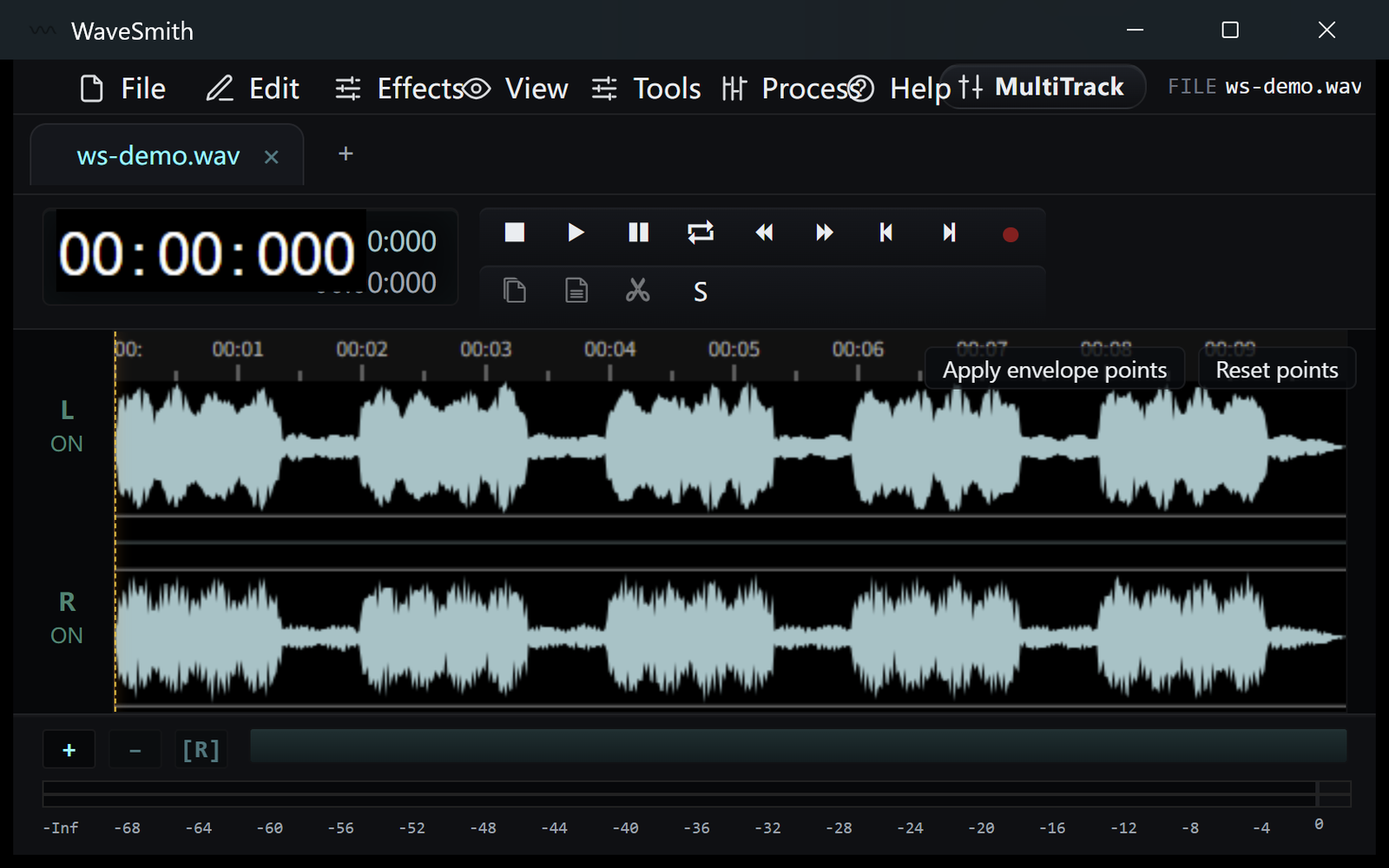
Step 2 A/B swap. If the voice got thinner, undo and use a lighter pass.
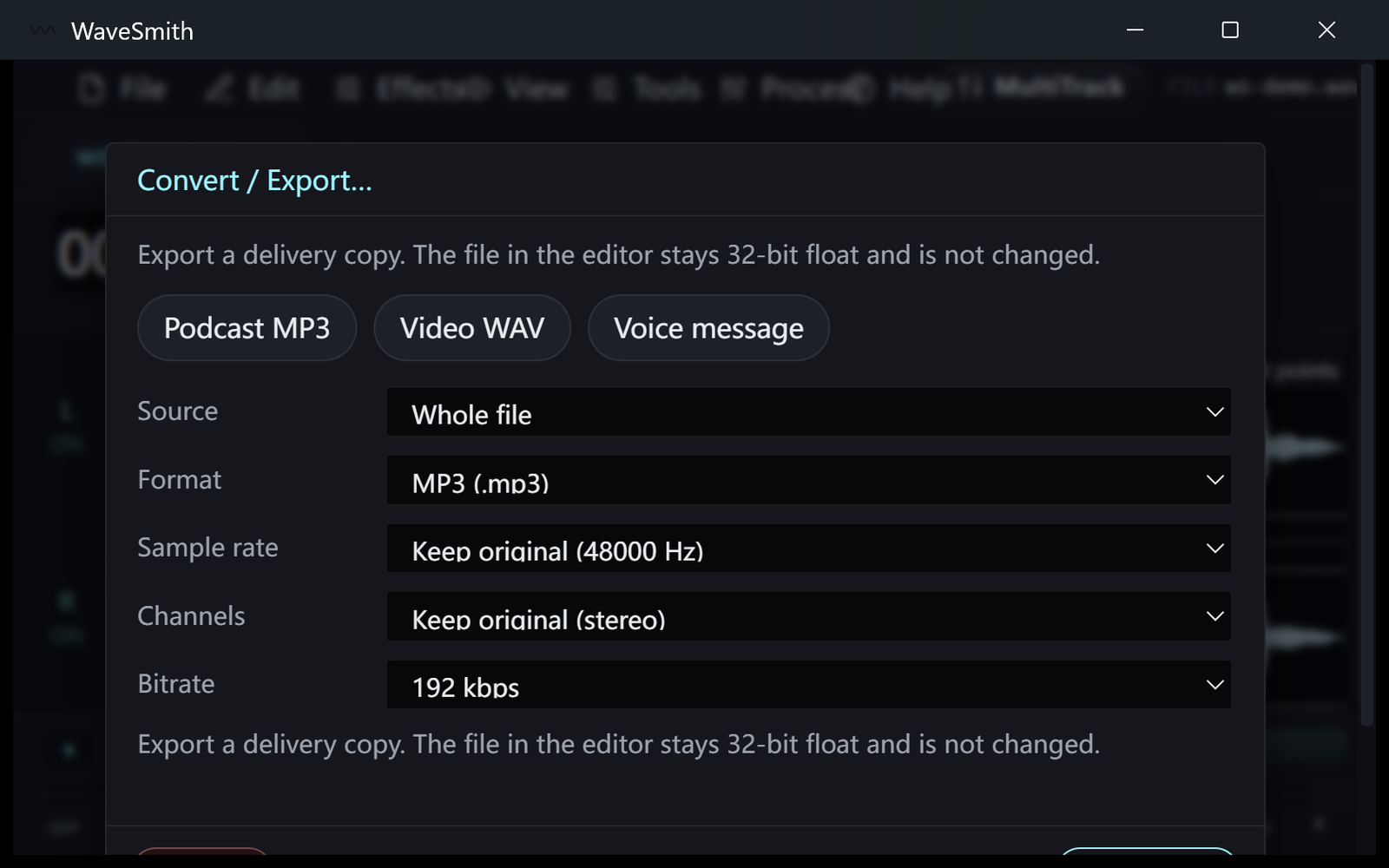
Step 3


Ready? Download the Windows installer.
Related
Install it. Open a file. Feel the difference.
Free Windows 64-bit installer. WaveSmith 1.1.0. Your audio does not go to our servers — we do not have a place to put it.
Download WaveSmith free